linkport Terminal: an SSH client for Windows, macOS and Linux
SSH, SFTP, Telnet and serial with split panes, a local key vault and an AI assistant on your own model. It connects straight to any host you can reach — and, through a linkport link, to machines behind NAT with no open port. Included with Pro and Team.
Windows · macOS · Linux · English and Russian interface · Sign-in with a code you confirm in the browser
Connect to anything SSH can reach
One host list for servers, network gear and boards: SSH with every common way to sign in, plus Telnet and serial.
Password, key, agent, certificate or 2FA
Keyboard-interactive prompts and OpenSSH certificates work. Agent forwarding is off by default and inherited from the group.
Jump-host chains and proxies
Chains of jump hosts, SOCKS5 and HTTP CONNECT proxies, IPv6 with or without brackets. The proxy applies to the first hop.
Telnet and serial ports
For switches, routers and boards that never learned SSH.
Reconnects on its own
Keepalive per host and automatic reconnect with backoff, from 0.5 s to 60 s over eight tries. A shell you left with exit stays closed.
Host keys you can trust
Trust on first use, and the session stops if a host key changes.
Port forwarding
Local, remote and dynamic (SOCKS5) forwards, the same as ssh -L, -R and -D.
Local shells
The shells on your own computer, found automatically, in the same tabs and splits.
Groups that pass settings down
User, port, proxy, startup snippets and agent forwarding are inherited from the group and can be overridden per host.
Tabs, split panes and workspaces
Built for an eight-hour day: the keyboard reaches everything, and a layout you use every morning opens in one action.
Split trees and tabs
Every pane is its own SSH session. A workspace saves the split tree and reopens it in one action; templates too.
Broadcast input
Type once into every pane of a workspace, with a report of which panes got it.
Command palette
Ctrl+K reaches any host, action, snippet or setting from the keyboard.
Local completion
Suggestions for 20+ server commands with subcommands and flags, plus history. Local — no AI and no key.
Shell integration
Command boundaries, exit codes and timings from OSC 133. The hook goes into .bashrc or .zshrc only with your consent, after you see the text.
Your hotkeys and colors
Hotkey profiles from iTerm2, Windows Terminal and GNOME Terminal. Color schemes imported from iTerm2 and Windows Terminal, checked for contrast.
SFTP file manager with a resumable transfer queue
Two remote panes side by side, a queue that pauses and resumes, and previews that do not drag a gigabyte over the wire.
Two panes, two hosts
Each pane has its own host and breadcrumbs; copy between servers with progress per file and per job.
Pause, resume, survive a restart
An interrupted transfer resumes from the byte it stopped at; folders resume file by file. The queue survives a restart.
Preview without downloading
Images, PDF, logs and JSON. Large logs are cut on the server with head and tail, so a gigabyte never travels.
Archives and search
Unpack zip and tar archives, pack a selection, search file contents with rg or grep.
Edit in place
A built-in editor with its own undo history; permissions and owner too.
Drag and drop
Drop files from your desktop into the open folder.
An AI assistant on your own key — or a local model
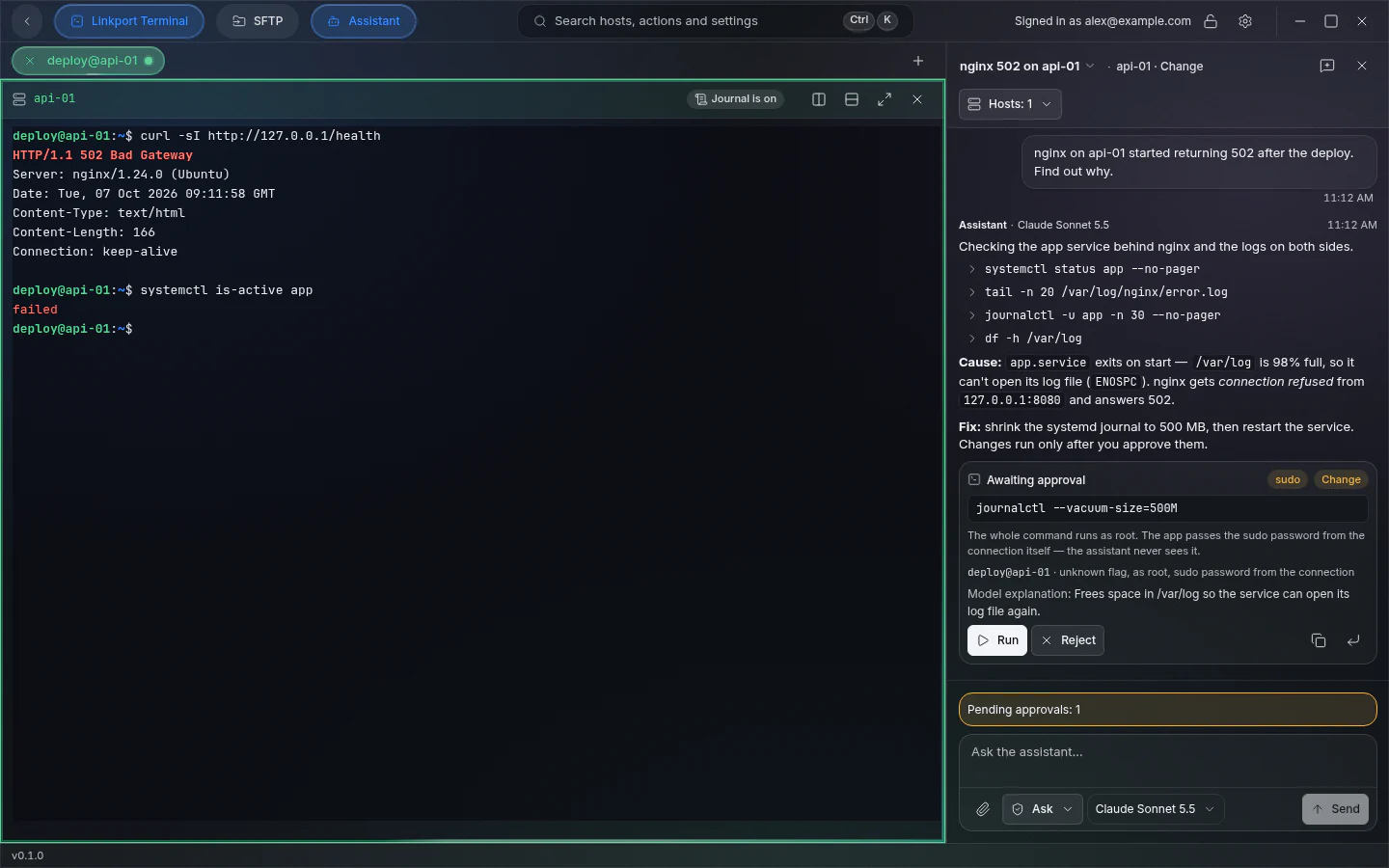
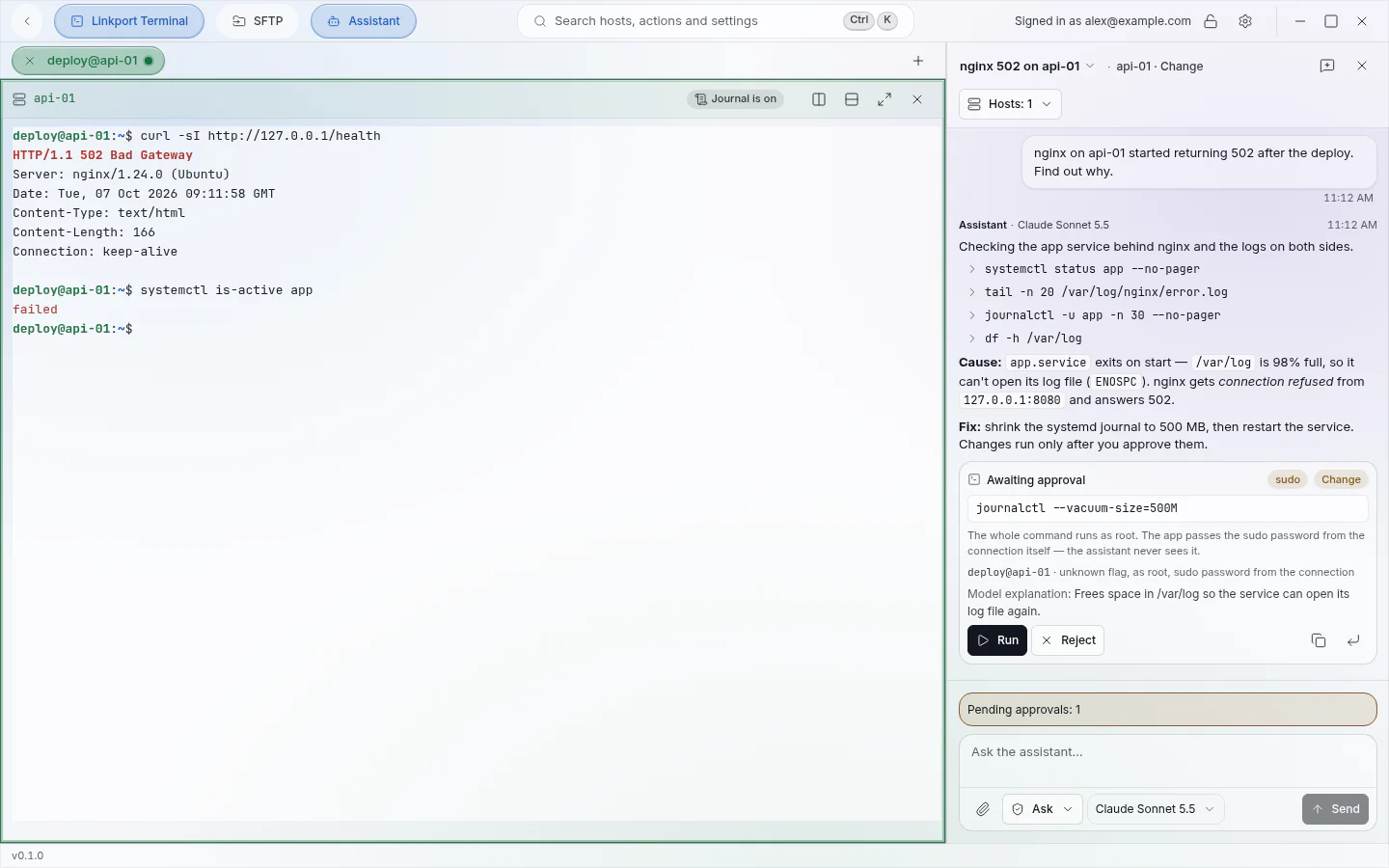
It reads logs and configs on the hosts you allow, explains what it found and proposes the fix. You run the change.
Bring your own model
Your OpenAI, Anthropic or Gemini key, or a local model.
Reads run, changes wait
Read-only checks run by themselves. A change shows the exact command and waits for your Run.
Access per host
None, View or Changes for every host. Turn on YOLO only for hosts with Change access, and only if you want it.
sudo without telling the model
When a change needs root, the app passes the connection’s sudo password itself; the assistant never sees it.
Keys, certificates and a vault that stays on your machine
Keys and passwords are encrypted on your computer; copies in your account are encrypted before they leave it.
Generate and convert keys
Ed25519 by default, RSA 3072/4096, ECDSA P-256/384. Import OpenSSH, PEM and PPK; convert PPK and OpenSSH both ways.
OpenSSH certificates
Attach a certificate to a key, see principals, validity and the CA fingerprint, sign in with it.
authorized_keys on the server
Read, add and revoke keys on a server — with a check that you are not revoking the key of the current connection.
An encrypted local vault
Argon2id and XChaCha20-Poly1305. With your consent the master key goes to the OS keychain.
Several vaults and backups
Separate vaults with their own passwords and backups under a separate password.
Encrypted copies in your account
Vault snapshots in your linkport account, 1 GB and 30 versions per vault; live sync between devices is not there yet.
Snippets, session recording and a journal
Repeatable commands, and a record of what happened that you can replay later.
Snippets with variables
A variable marked secret never reaches the preview, the log or the command history.
A diagnostic snippet library
Disk and inodes, memory, top processes, TLS certificate, listening ports, failed units — copied into your vault to edit.
Session recording
Output in asciicast v2, playable in asciinema and in the app. Typed input is never recorded.
A session journal
Host, user, time and duration of every session, filters and a retention policy; bookmarked sessions are kept.
Import hosts from Termius, PuTTY, MobaXterm, SecureCRT, Royal TS and ~/.ssh/config
Every import shows a preview with the status of each host before anything is added.
- ~/.ssh/config
- Include and ProxyJump are followed.
- PuTTY
- A .reg file or the live Windows registry.
- Termius
- The JSON export, with hosts and their groups.
- MobaXterm
- SSH sessions; RDP, VNC, Telnet and serial entries are skipped with a warning.
- SecureCRT
- Session files from the Sessions folder.
- Royal TS
- .rtsx documents; save a .rtsz as .rtsx first.
Saved passwords are not imported. Other clients store them reversibly, so you type them once. linkport Terminal vs Termius
Machines behind NAT, without an open port
Machines from your linkport account appear in the host list with a linkport tag. The SSH session runs through the machine’s link, so the machine needs only an outbound connection on 443 — behind CGNAT, LTE or a corporate firewall.
linkport Terminal questions
What is the desktop terminal?
linkport Terminal is a desktop SSH client for Windows, macOS and Linux. It signs in with a short code you confirm in the browser and opens a real SSH session through a linkport tunnel. The download is public; using it needs Pro or Team.
Is linkport Terminal an alternative to Termius?
For desktop SSH, yes: SSH, SFTP, split panes, snippets and a key vault on Windows, macOS and Linux, and it imports your hosts from Termius. It also reaches machines behind NAT through a linkport link, and its AI assistant runs on your own key or a local model. There are no mobile apps, and using it needs Pro or Team.
Can I import my hosts from Termius or PuTTY?
Yes. linkport Terminal imports from ~/.ssh/config, PuTTY (a .reg file or the Windows registry), Termius, MobaXterm, SecureCRT and Royal TS, with a preview before anything is added. Saved passwords are not imported: other clients store them reversibly, so you type them once.
Does linkport Terminal work with servers that are not behind NAT?
Yes. It connects straight to any SSH server you can reach, through a jump-host chain or a proxy, as well as through a linkport link.
Which AI models can the assistant use?
Your own OpenAI, Anthropic or Gemini key, or a local model. Read-only checks run by themselves; anything that changes the machine waits for your Run unless you turn on YOLO for a host with Change access.
Something else? Write to [email protected] or read the security model.